MacWrench 1.2.0 — Dashboard, Menu Bar widget, and Large Files scanner
Three new surfaces and a smarter way to run every check at once. This is the largest functional release since the 1.1 launch.
One screen for the whole Mac
Until 1.2, knowing whether MacWrench needed your attention meant cycling through three tabs — Apps, Homebrew, Cleaner. That's more steps than the answer usually deserves. Most of the time the answer is "nothing right now" or "just one thing."
The new Dashboard is the first surface MacWrench opens to. A disk gauge shows used, available, and purgeable space. A health score lists one-line blockers ("4 app updates pending", "8.5 GB of cleaner opportunity"). An operations grid carries signal tiles for app updates, brew updates, reclaimable bytes, orphaned files, and startup risk. Each tile is a quick-jump — tap App Updates and you land in the Apps tab with the relevant items already in view.
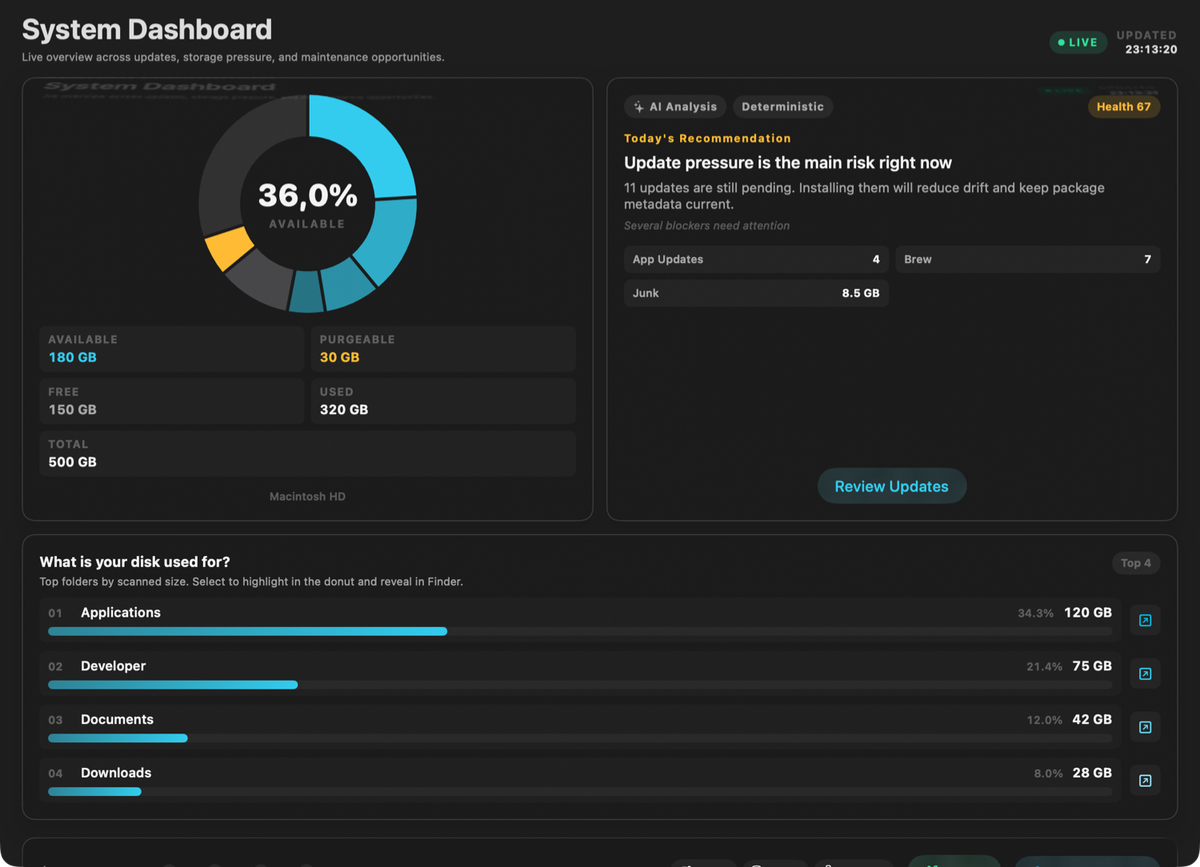
And there's Smart Scan: one button that runs every subsystem check in sequence — apps, Homebrew, cleanup, orphaned files, startup items — with a transport bar showing phase progress and any errors. When it finishes, the Dashboard reflects the freshest state of every surface. No manual refreshing.
The Menu Bar widget
The Menu Bar widget is for the days when you don't want to open MacWrench at all. Click the menu bar icon and you see pending updates — split between Applications and Homebrew — with the last refresh timestamp. A refresh button checks again. An Open button takes you to MacWrench when you're ready to act. That's it. No badge counts buzzing in your tray, no notifications begging for attention.
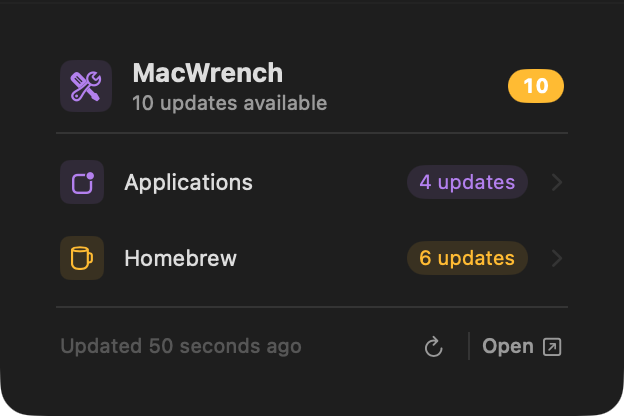
If nothing is pending, the app stays closed indefinitely. If something is pending, two clicks get you there.
Large & Old Files
The Cleaner in 1.1 swept caches and developer cruft well, but it didn't help with the real disk hog — old downloads you forgot about. 1.2 adds a Large & Old Files scanner inside Cleaner. It finds files above a minimum size (100 MB / 500 MB / 1 GB) you haven't opened in 3 months, 6 months, or a year. Sort by size or last access, multi-select, send to trash. Category badges (Archive, Image, Video, etc.) make triage trivial — "delete every old DMG over 1 GB" is one filter and one click.
For most people, this one scanner recovers more space than every other Cleaner category combined.
Smaller things that add up
Each tab now keeps its own back-stack. Drill into a Homebrew package, switch to Apps, switch back — you're still on the package detail. No more re-finding what you were looking at.
Failure paths in Apps, Homebrew, Cleaner, Menu Bar, and Dashboard now surface inline instead of failing silently. Smart Scan reports phase errors directly in the transport bar — you'll never see "scan completed" while one subsystem quietly broke.
What's next
1.2 lays the foundation for the next direction: tighter integration between the Dashboard and per-tab actions, scheduled maintenance, and cleanup recommendations driven by what's actually accumulating on your disk over time. Smart Scan is the first piece — it's how 1.3 will know what to suggest before you ask.
Full list of changes is in the changelog.